SharePoint ticketing system: build it yourself or use a ready-made app
23 November 2026
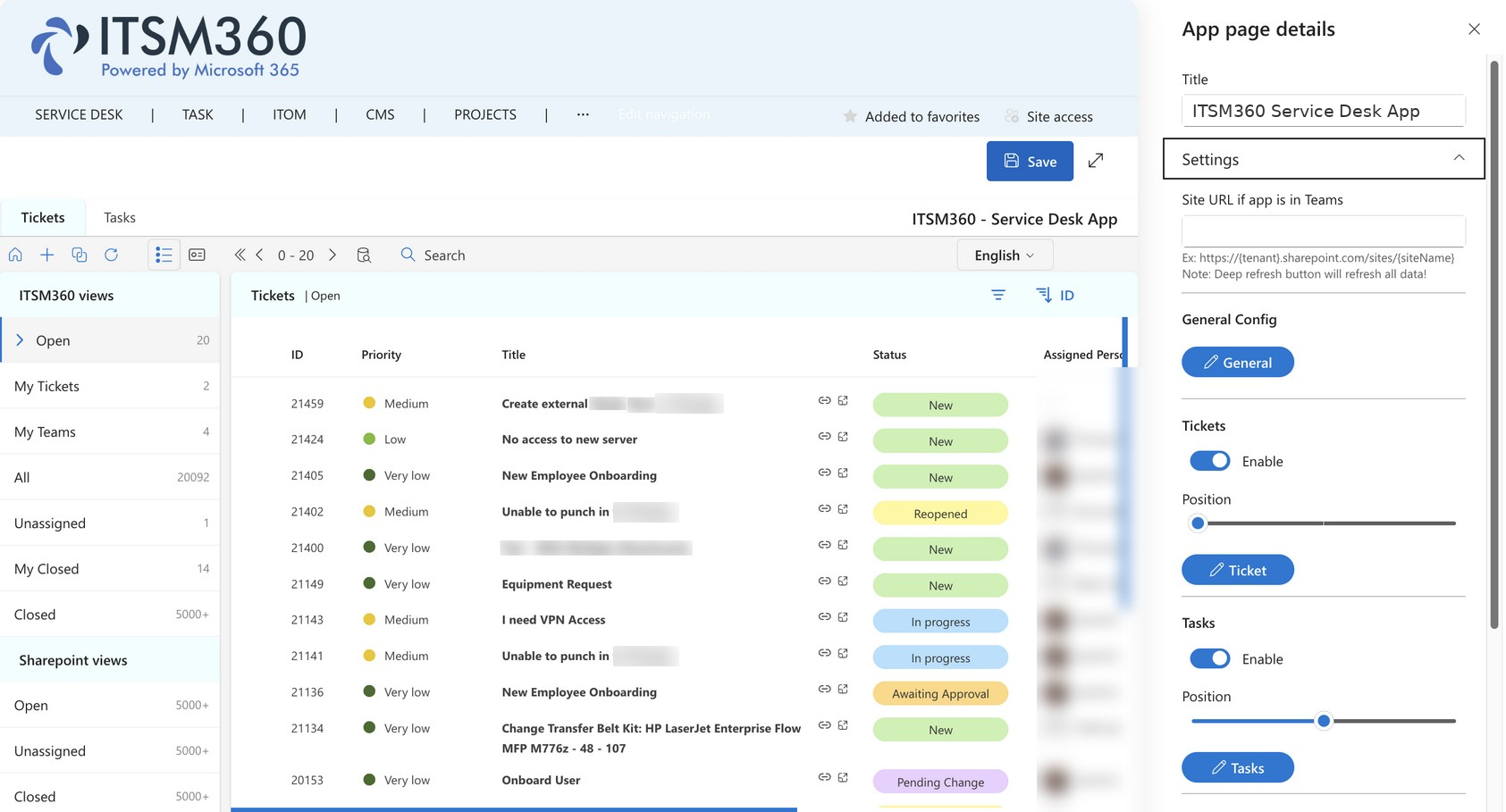
If you are searching for a SharePoint ticketing system, there is a fair chance you want to build one. SharePoint is already there, Microsoft Lists is easy, Power Automate can send the notifications, and a licence for yet another tool is a hard sell. I understand that completely. Before I joined ITSM Company I built exactly that kind of system, and parts of it ran for years.
This post is about what you get when you build, where it stops, and what changes when the ticketing system is an app on SharePoint Online rather than a list in it. Building fits a short trial, and I will explain why it rarely fits beyond that. Then you can decide.
What you can build in an afternoon
The SharePoint ticketing system template from Microsoft
The quickest route is Microsoft’s own IT help desk site template. According to Microsoft’s support page it creates a team site with a Tickets list, a Devices list, an FAQ page and standard web parts for links, news and events. From there:
- A Microsoft Forms form collects the request. A Power Automate flow creates a list item from the response.
- Columns hold status, priority, category, assigned to and due date. Choice columns keep the values consistent.
- A flow posts an adaptive card in a Teams channel when a ticket arrives and sends an email when the status changes.
- A list view per status gives agents their queue. Formatting rules colour overdue items red.
- A second list holds knowledge articles, linked by a lookup column.
This gets a help desk going without licences beyond the Microsoft 365 you already have. What it does cost is the time to keep it running, and that starts in the first month, also for a help desk of two or three people.
Where a self-built SharePoint ticketing system runs out of road
The maintenance starts right away; the bigger problems arrive slowly, which is why they are easy to underestimate. These are the ones I see most often.
The 5,000 item view threshold. A SharePoint list can hold millions of items, but a view that returns more than 5,000 items, or a lookup column across a large list, hits the list view threshold. A busy help desk reaches 5,000 tickets within a year or two. Indexed columns and filtered views postpone the problem; they do not remove it, and every “all tickets” report becomes an exercise in workarounds.
Permissions per item. Users should see their own tickets and nothing else. Agents should see their team’s queue. HR tickets should be invisible to IT. SharePoint can do item-level permissions, but setting them from a flow on every ticket is fragile, slows the list down and is the first thing to break when someone changes a column.
SLA timers. “Respond within four hours, resolve within two days, pause while waiting for the user” is a timer with business hours and pause states. In a flow this becomes a scheduled run every few minutes that recalculates every open ticket. It can be done. It is also the flow that silently stops after a connection expires.
Several teams, one system. As soon as Facilities or HR want their own queue, you are copying lists, flows and views, and then keeping the copies in sync.
Reporting people trust. Power BI on a list works, until the list changes shape and the report does not. Resolution time per category, reopened tickets, first-contact fixes: each needs data that a hand-built list rarely captures consistently.
Audit and version history. SharePoint keeps versions, which is a real advantage. What it does not give you is a readable activity log per ticket (who changed what, when, from which channel) unless you build that too.
Maintenance in between. Every request for a new field means changing the form, the flow, the views and the report, and then testing that nothing else broke. Connections in flows expire and have to be renewed. Microsoft keeps updating Forms, Lists and Power Automate, and a flow that worked last quarter can need adjusting. None of this is large on its own. Together it is a steady claim on someone’s time, every month, and that time rarely shows up in a budget. After a few years many teams find that keeping the system going costs more effort than rebuilding it, and they start over.
The person who built it. In my experience, this is the one that ends many home-grown systems. The flows live in one person’s account. When that person leaves, the connections expire and nobody knows which flow does what.
What a purpose-built app on SharePoint Online changes
Here is the part that surprised me when I first looked at ITSM360: it runs on SharePoint too. The data is in SharePoint in your own tenant, plus document libraries for knowledge and attachments. The difference is in how the apps use SharePoint.
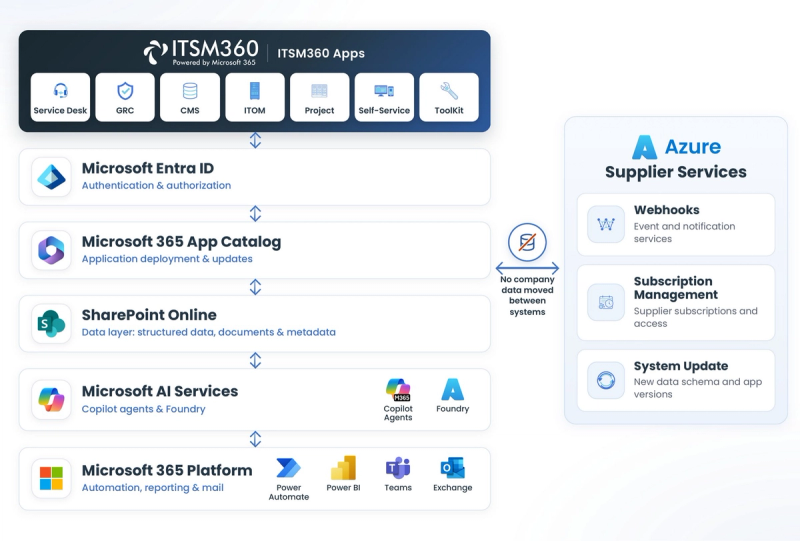
The apps read and write through the SharePoint API. That means the 5,000 item view threshold does not apply, a list can hold up to 30 million records, and installations with over a million records have been tested. You keep what makes SharePoint attractive, the data in your tenant under your own security, search, backup and retention, and you lose the limits that make a hand-built list painful.
A few other things come with the app rather than with a flow:
- Deployment through the app catalogue. The apps are SharePoint Framework packages installed through your own Microsoft 365 app catalogue. Because of that, nothing depends on flows in one person’s account.
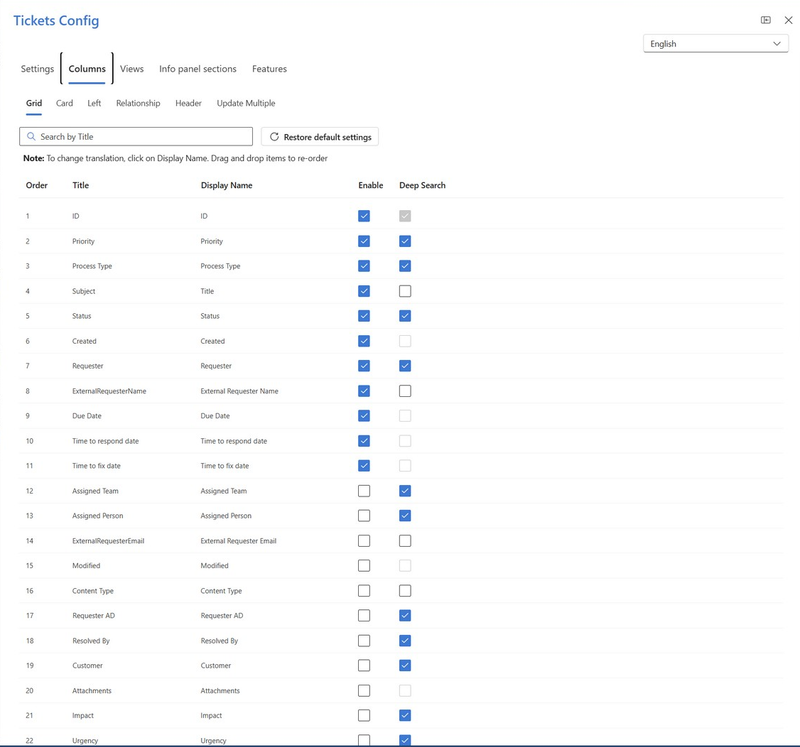
- Configuration without code. Columns, views, tabs, forms, SLA rules, notification templates and teams are set in the app and in the ToolKit administration app. The data model can be extended by adding columns to lists.
- Permissions that hold. Standard SharePoint groups plus an agents group and self-service groups, managed in Entra ID, with per-department catalogues and queues on the same data model.
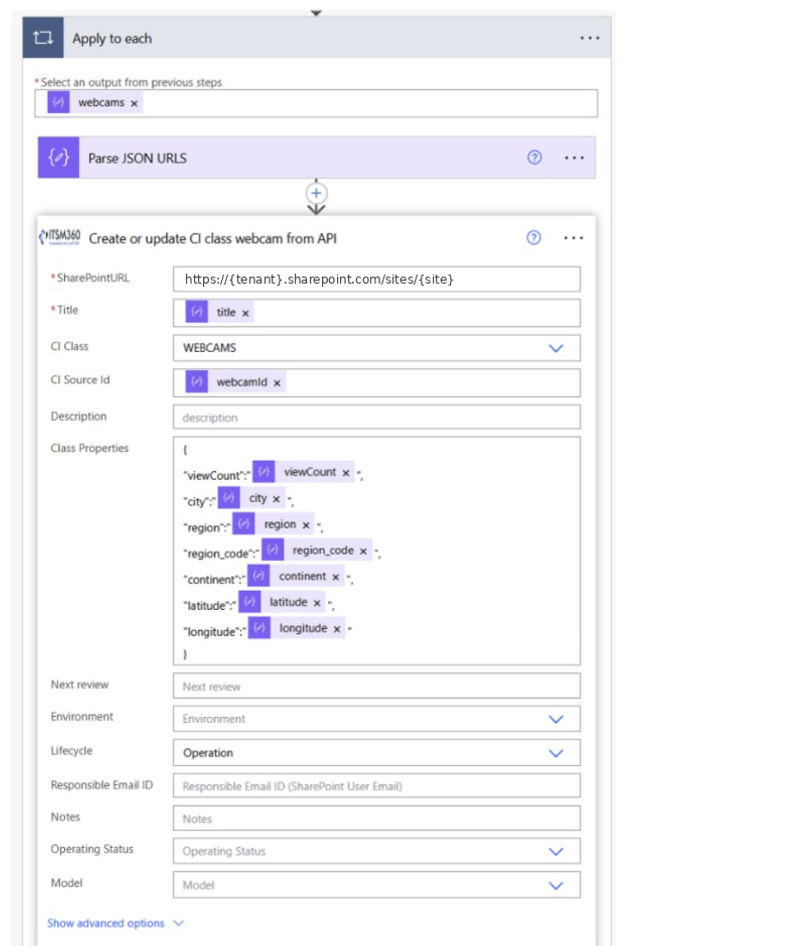
- SLA, runbooks and audit built in. Timers for response and resolution, runbooks that trigger Power Automate flows from a ticket and log every run, version history and an activity trail on each record.
- The Microsoft services inside the ticket. A OneNote page opens in the ticket, a To Do created on a ticket appears in the agent’s Outlook, a Teams chat with the requester updates in the ticket. These are standard features, possible because the app calls Microsoft Graph under your own identity.
- Copilot on your data. Because tickets and knowledge are in your tenant, Microsoft Copilot works on them natively. A Copilot agent in the Service Desk app suggests resolutions from earlier tickets, and Smart Resolve proposes the runbook that applies them, which runs once the agent approves.
The technical installation takes one to two hours; forms, categories and SLAs are then set up with your process owners. Agents cost EUR 49 per month each; end users are free.
A short decision guide
Build your own SharePoint ticketing system only to try out a ticket process for a few weeks before you choose a system. Even then, someone has to maintain it from the first month.
Use a ready-made app on SharePoint if:
- more than one team or department will raise or handle tickets,
- you need SLAs, per-team permissions and reporting that survives a column change,
- you want the system to outlive the person who set it up,
- you would rather spend the maintenance time on the service desk itself,
- you want Copilot and automation to work on ticket history, not just on documents.
Choose a platform outside Microsoft 365 if your organisation does not run on Microsoft 365, or has standardised its entire IT operation on one large vendor platform. In that case a SharePoint-based system, built or bought, will feel like the odd one out.
One last thought
The appeal of a SharePoint ticketing system has always been the same: the data stays with you, in a system your own people understand. That appeal is right. The mistake is to assume you have to build it yourself to get it. A purpose-built app on SharePoint Online gives you the same ownership, without flows that depend on one person’s account.